
Publisher Guide
A short manual for navigating the TwinRed publisher portal
This guide walks you through the essentials of the TwinRed publisher portal: signing in, finding the API documentation, building reports, and managing your sites and zones. Keep it handy as a quick reference while you get comfortable with the controls.
Signing in
Access the portal at https://control.twinred.com/login.
First-time sign-in
- Enter the email address associated with your publisher account.
- Click Reset password and follow the email link to set a password.
- Return to the login page and sign in with your email and the password you just set.
Tip — If the password reset email doesn’t arrive within a few minutes, check your spam or junk folder. If it still isn’t there, contact your account manager and we’ll help you in.
New layout
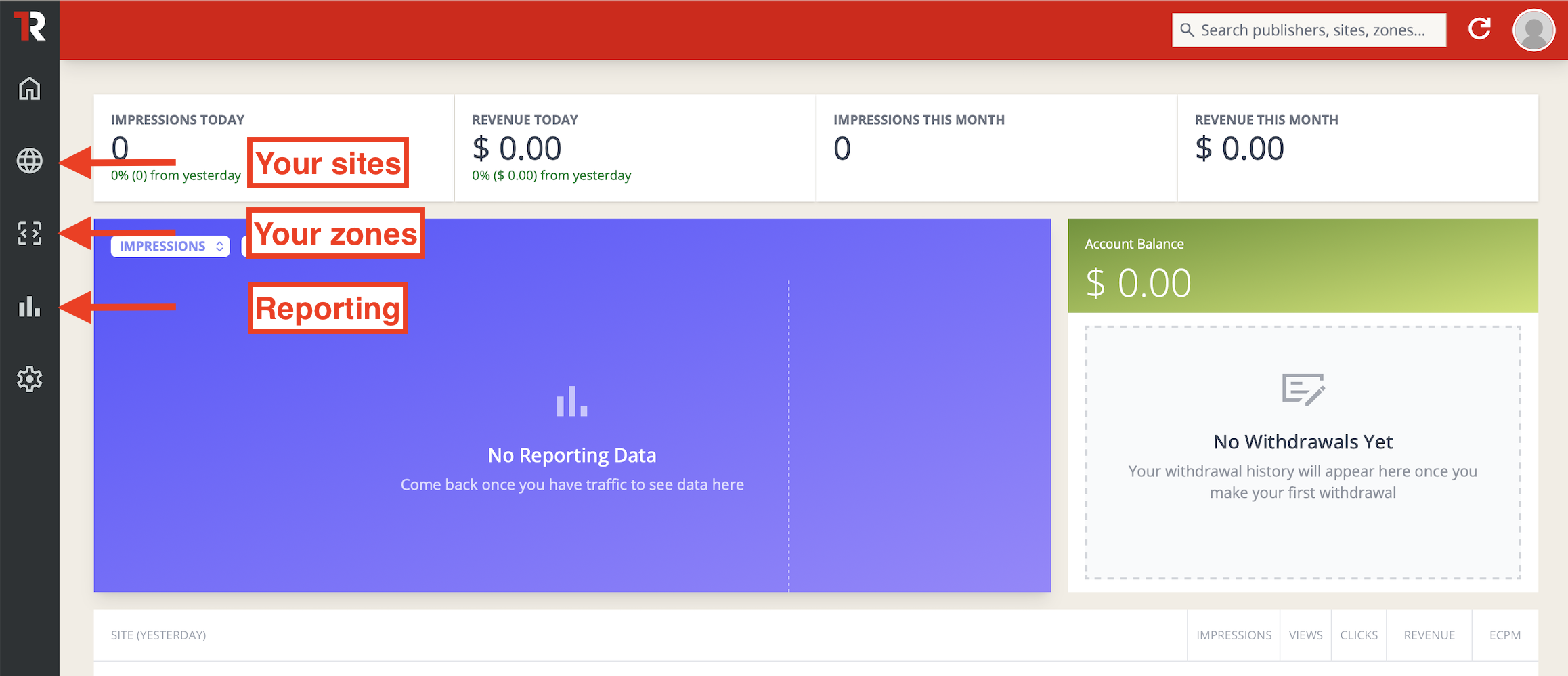
API
Finding the API documentation
- After signing in, open the menu in the upper-right corner of your profile and select the API documentation link.
- You can also open the documentation directly at https://control.twinred.com/docs/api#tag/Publisher-stats.
Generating an API key
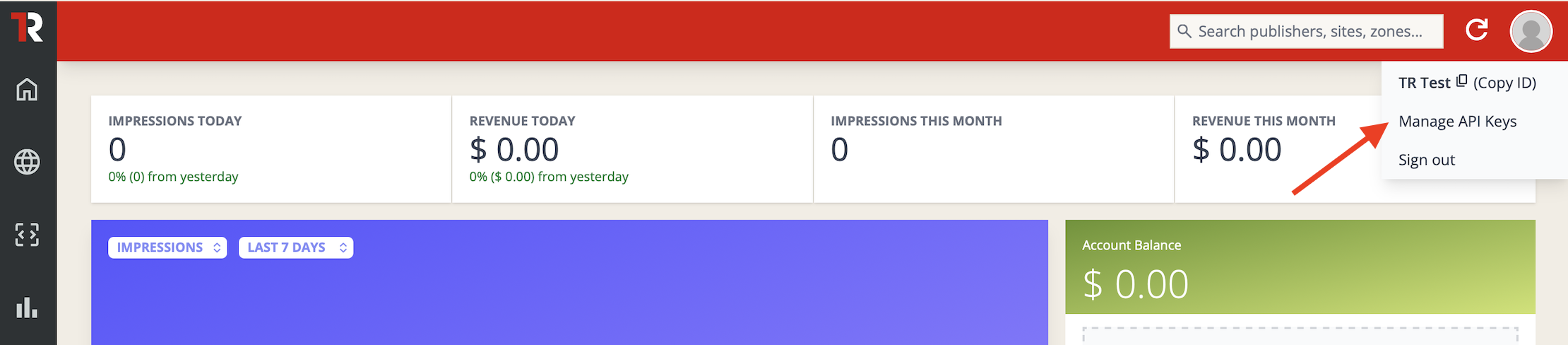
- Click your profile menu in the top-right corner and choose Manage API Keys.
- Select Generate new API key and copy the key somewhere safe — you won’t be able to view the full key again after closing the dialog.
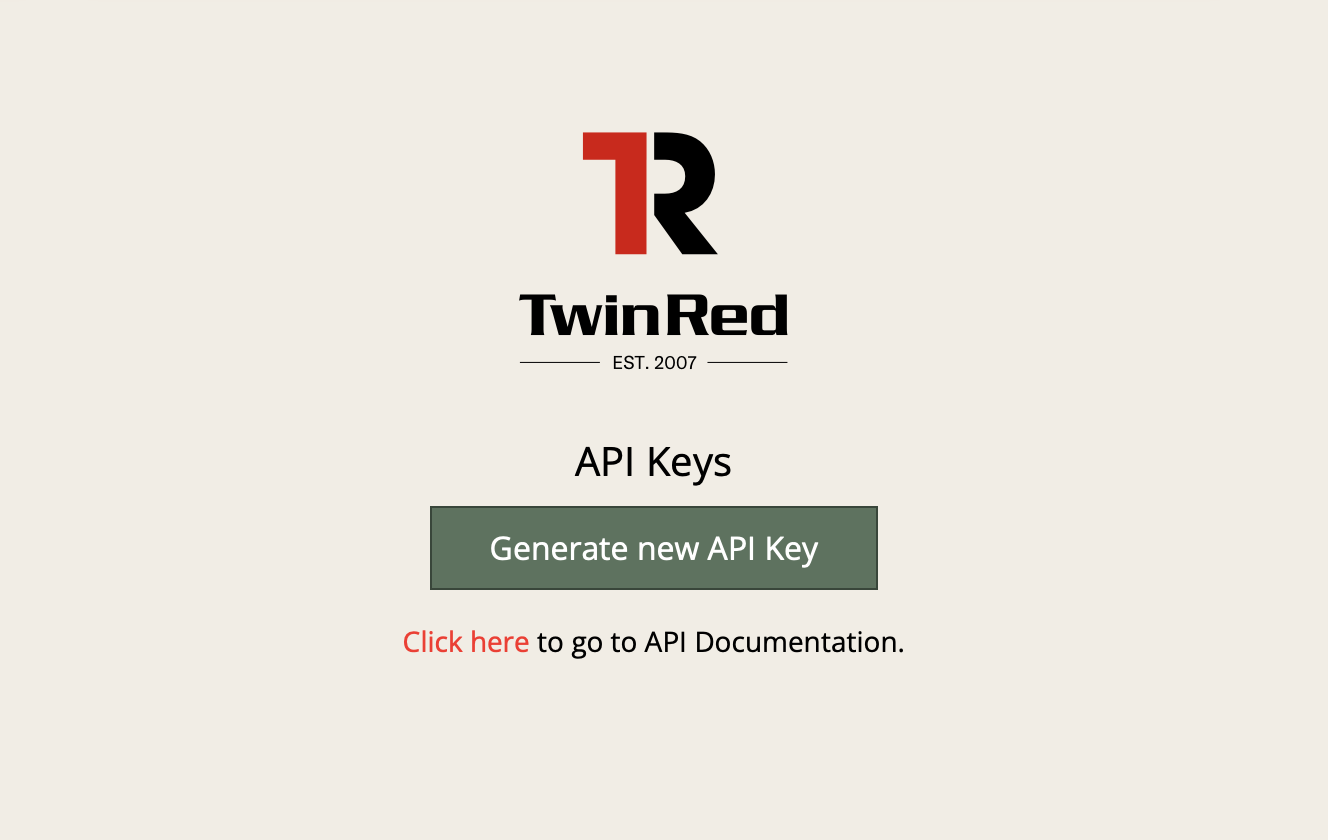
https://control.twinred.com/docs/api - You can revoke or regenerate a key from the same screen if you suspect it has been compromised or you simply want to rotate it.
Query parameters
Use subid to pass a custom sub-identifier through to your reporting. This replaces the previously used tid parameter.
Reporting
The reporting area is available from the left-hand navigation. Reports are built by choosing a time frame, dropping fields into columns/filters/sort areas, and clicking Run.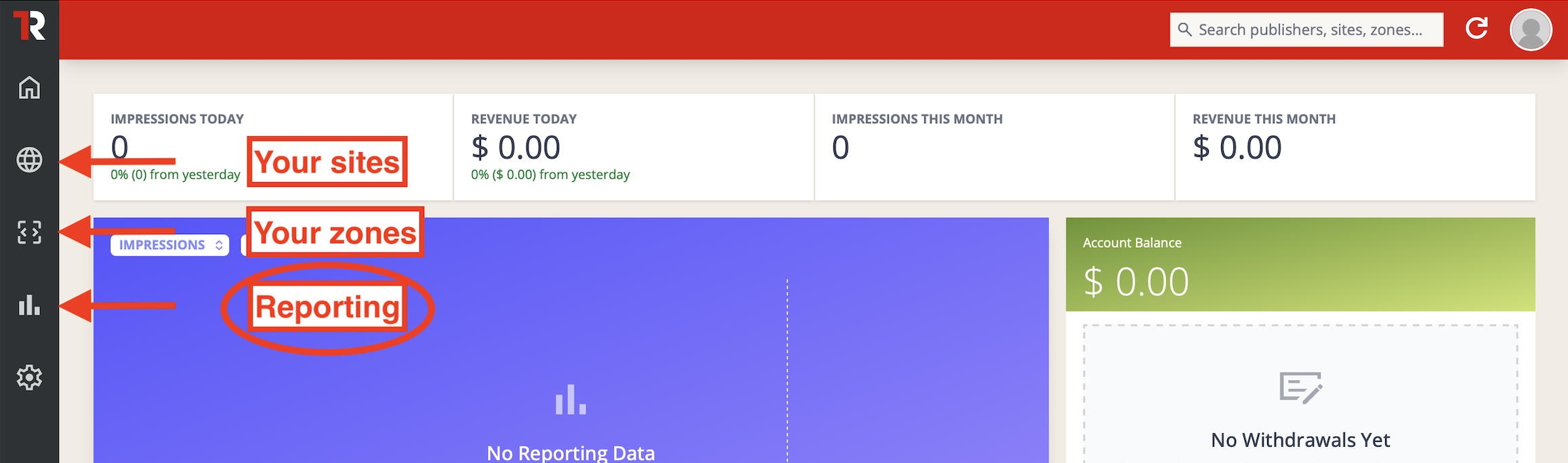
Building a report
- Choose a time frame. All times are in UTC, matching the underlying ad server.
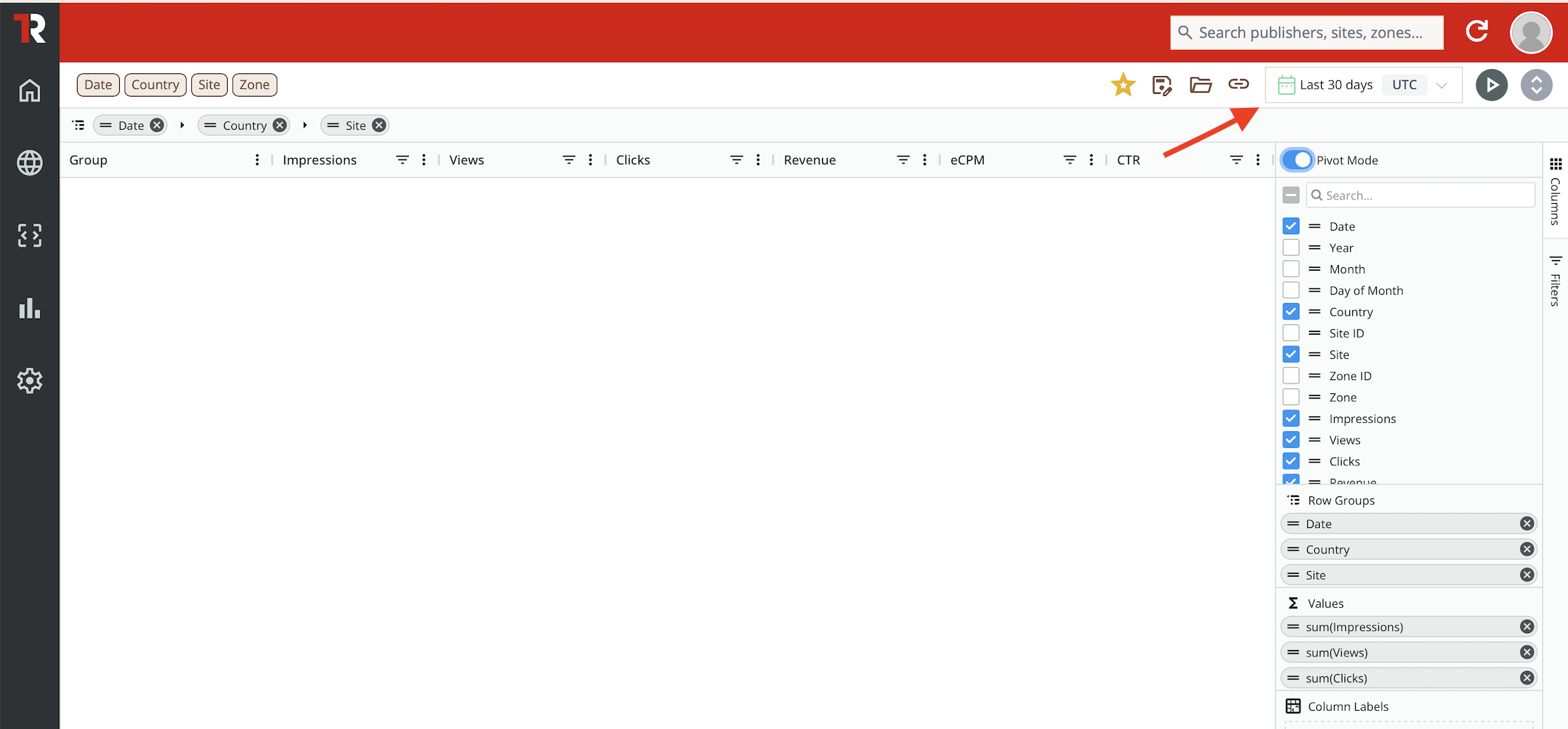
- Pick the fields you need.Drag and drop fields into the Columns, Filters, and Sort by areas. Field types are colour coded:
- Dimensions (white) — attributes such as Site, Zone, Country, or Device.
- Measures (blue) — numeric values such as Impressions, Clicks, or Revenue.
- Time dimensions (green) — date or hour granularity such as Day, Week, or Month.
- Set the column order. Fields in the Columns area are read top to bottom and rendered left to right in the report table.
- Sort the data. Add the fields you want to sort by to the Sort by area, and click each entry to toggle Asc or Desc. Priority is applied top to bottom.
- Apply filters. Drop any dimension or measure into the Filter area to narrow the result set (for example, a specific country or a minimum revenue threshold).
- Run the report. Click Run in the top-right corner. To remove a field, simply click it.
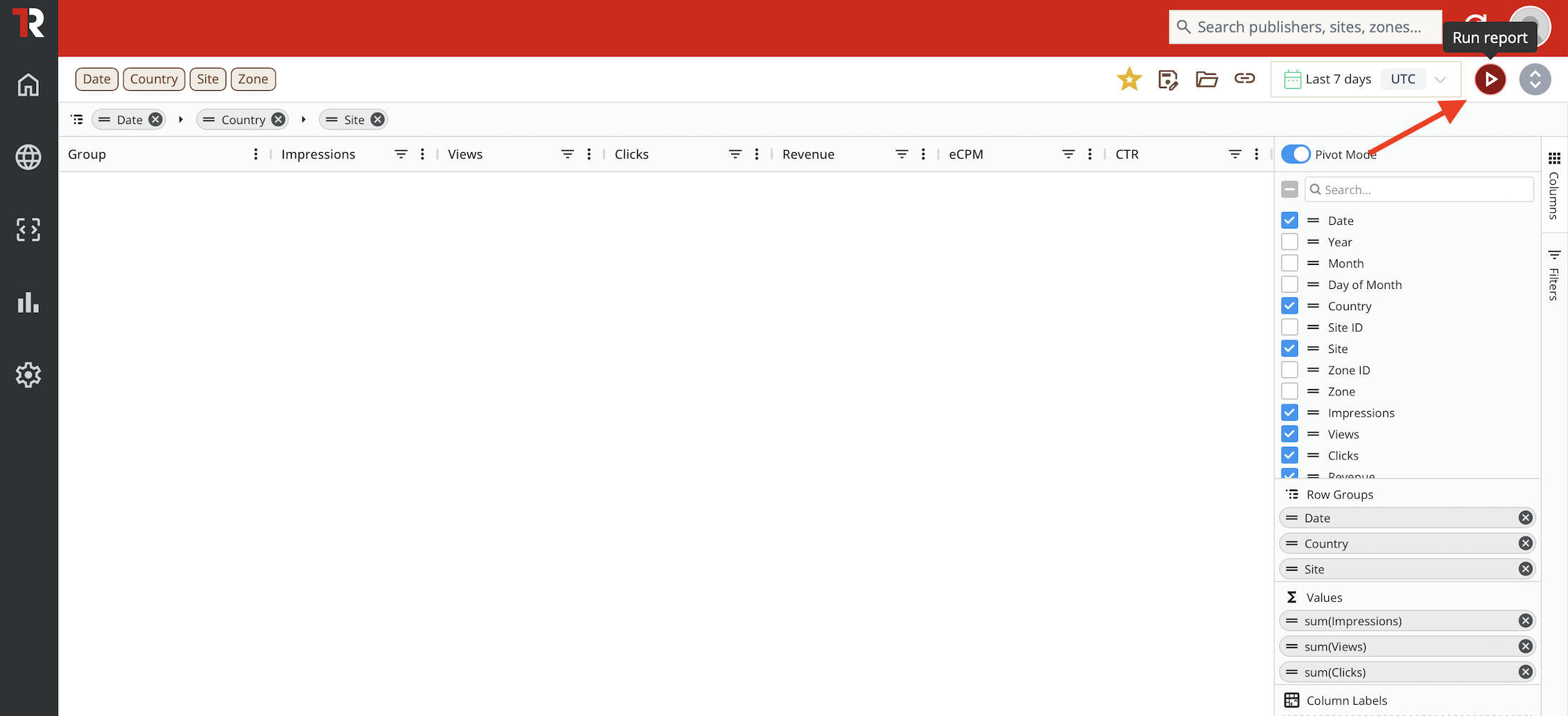
Note — Reports require at least one measure (a blue field). Without one, the report cannot be generated.
Sites and zones
The Sites view lists every site in your account, with a high-level summary of activity for the period you select. You can drill into the Zones view to manage zones inside a site and to grab the tags you need to install on your pages.
Sites overview
- Open Sites from the left-hand navigation.
- Choose a date range to see a high-level summary of performance over that period.
- Sort by any of the available metrics to surface your top or under-performing sites.
- Filter by status — Active, Inactive, or Archived — to focus on the right set of sites.
- Toggle columns on and off to keep the view focused on the metrics you care about.
Zones overview
The Zones view offers the same filters as the Sites view, applied at the zone level. Open a site to see its zones, performance summary, and tags.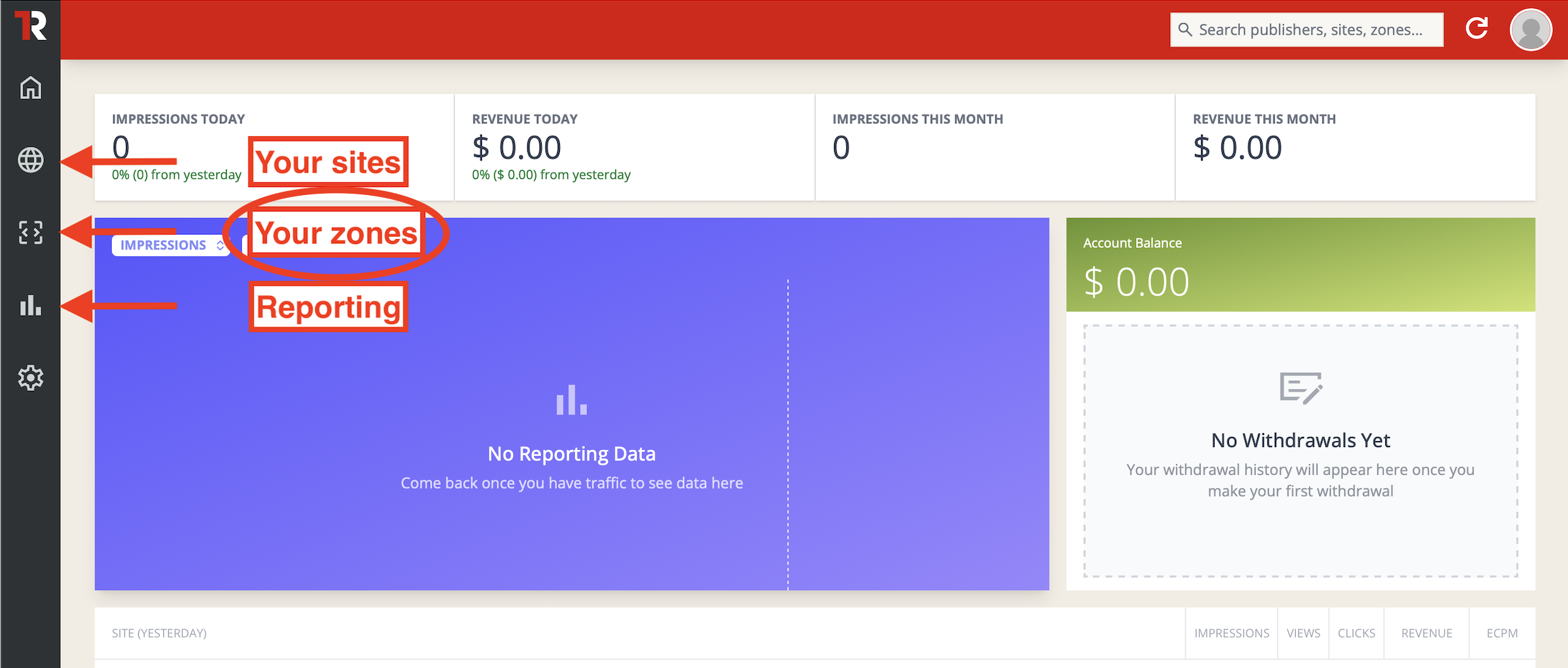
Downloading tags
From the Zones view, click Download tags in the top-right corner to export the scripts and links you need to install on your pages. The download contains every zone in the current view.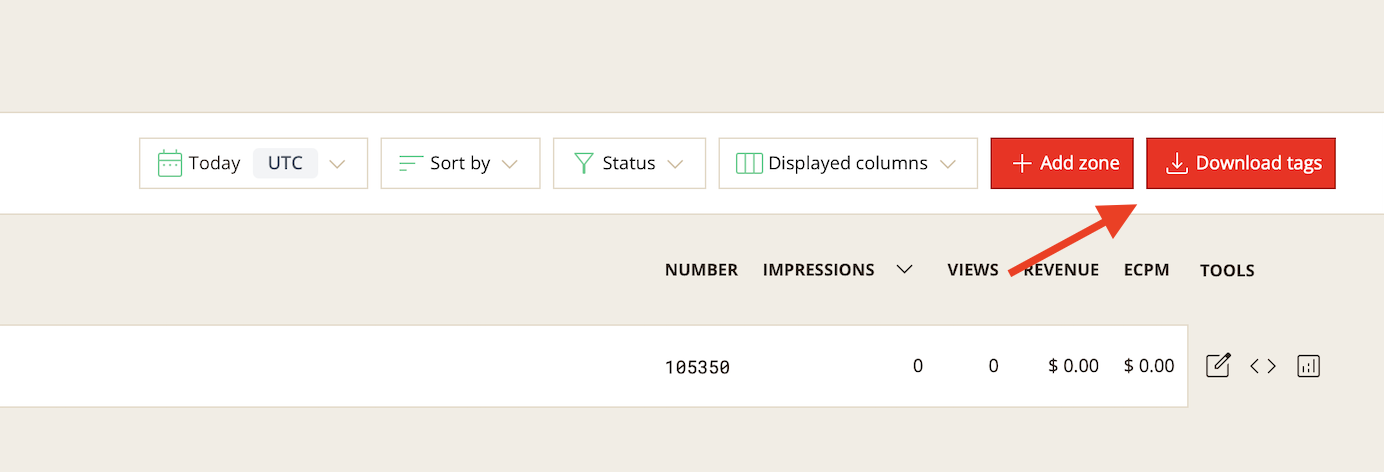
Need help?
Your account manager is the fastest route for account-specific questions. For technical questions about the API, the documentation linked above is the definitive reference and includes example requests and responses for every endpoint.